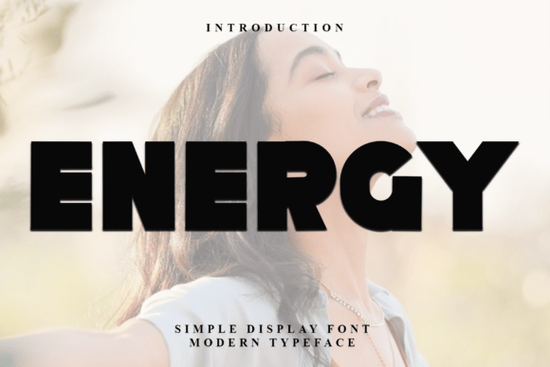
When designing for the holiday season, finding the right typography can make or break your project. The Energy Font is a festive and merry typeface designed to capture that specific seasonal spirit. It features decorative elements and a whimsical flair that adds a touch of enchantment to greeting cards, gift tags, and seasonal merchandise. If you are a crafter or a print-on-demand seller looking for a cheerful and nostalgic vibe, this display typeface gives your words a distinct, magical feel without looking overly complicated.
What kind of projects work best with festive typography?
Holiday-themed designs require a balance of readability and seasonal charm. Because this typeface includes decorative elements, it shines brightest when used for short phrases, titles, or standalone words. Print-on-demand sellers often use this style of lettering for holiday sweatshirts, ceramic mugs, and seasonal tote bags. The whimsical flair translates exceptionally well to physical products where the text needs to stand out against simple backgrounds.
For paper crafters and small business owners, this font is highly effective for physical mailers. Think about custom gift tags, folded greeting cards, and holiday party invitations. The nostalgic ambiance it creates helps your brand feel more personal and warm during the busy winter shopping season. Just remember to let the lettering breathe by giving it plenty of negative space around the edges.
How do you access special characters and ligatures?
One of the most practical features of this typeface is that it is PUA encoded. This is a massive time-saver for crafters who use cutting machines like Cricut or Silhouette. PUA encoding means every single glyph, swash, and ligature is mapped to a standard keyboard character.
If you do not have access to professional software like Adobe Illustrator or Photoshop, you can still use all the extra decorative bits. You simply open your computer's built-in character map tool, copy the specific ligature you want, and paste it directly into your basic design software or cutting machine workspace. This ensures you get the full decorative experience without needing an expensive software subscription.
How should you pair seasonal display fonts with other styles?
Pairing a highly decorative holiday typeface with the right secondary font is crucial for maintaining readability. You want your secondary text to be clean and simple so the main title remains the focal point. However, depending on your specific project, you might want to experiment with different moods.
If you want to mix things up for a children's craft project, you might pair it with playful handwritten styles like this jellywink option for a more casual, approachable look. For a slightly darker, mysterious winter theme, contrast the festive vibe with edgier display choices such as the web crypt typeface to create visual tension.
If your small business leans towards farmhouse or rustic aesthetics, try combining the holiday lettering with rustic serif alternatives like the buckhorn design to keep things grounded. Crafters making children's holiday books or storytime props might prefer storybook-inspired lettering similar to the happy storybook collection for the body text. Finally, for high-end holiday packaging or luxury gift boxes, balance the whimsy with elegant scripts like the lantis family to maintain a premium feel.
What are the best practices for installing and using this file?
Before you start designing, make sure you install the font files correctly to avoid missing glyphs or formatting errors. Here is a quick checklist to ensure your workflow goes smoothly:
- Install both OTF and TTF files: If your design software gives you the option, always choose the OTF (OpenType) version, as it handles ligatures and advanced typography features much better than TTF.
- Restart your software: After installing the font on your computer, completely close and reopen your design program so it registers the new typeface in the menu.
- Enable ligatures: If you are using Adobe Illustrator or InDesign, open the Character panel and make sure the Ligatures checkbox is ticked. This automatically connects specific letter combinations beautifully.
- Check your cutting machine settings: When using a Cricut or Silhouette, ensure you ungroup the text before welding or cutting, so the decorative swashes do not separate from the main letters.
Taking a few extra minutes to set up your workspace properly will save you from frustrating formatting glitches later. Test your text on a scrap piece of paper or a digital mockup before committing to your final holiday production run.
Download Now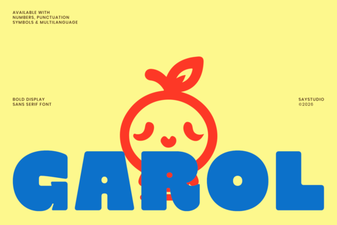 The Garol Font: Creative Uses for Your Design Projects
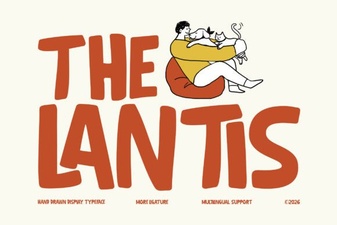 A Modern Typographic Style Guide
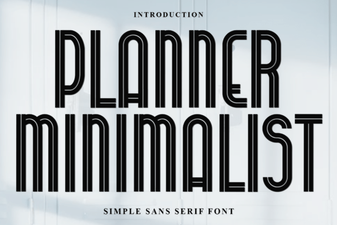 Minimalist Fonts for Clean Planner Designs
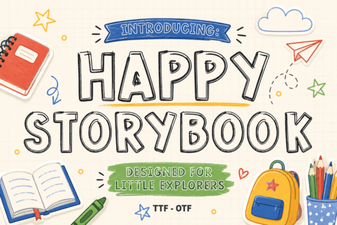 Happy Storybook Font: Create Playful & Readable Designs
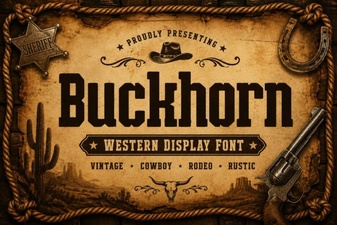 Craft Projects with Buckhorn Font's Western Charm
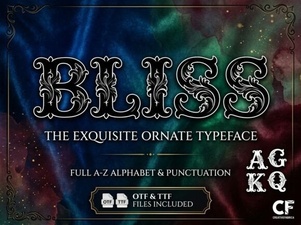 Bliss Font: Design Tips for Modern Projects